
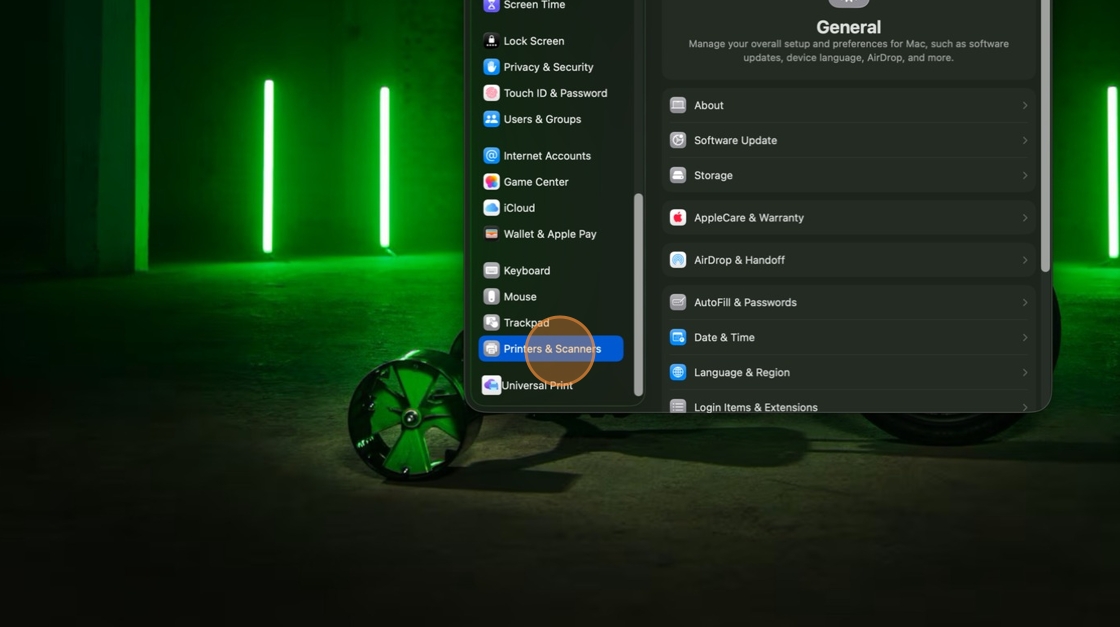
1. Open System Settings and Click "Printers & Scanners"
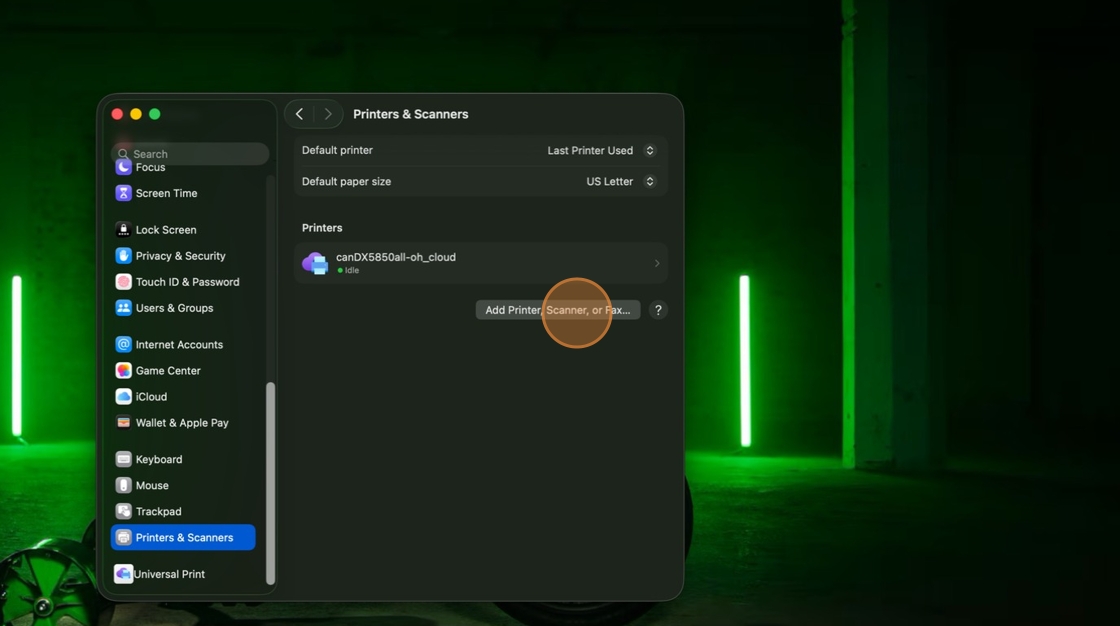
2. Click "Add Printer, Scanner, or Fax…"
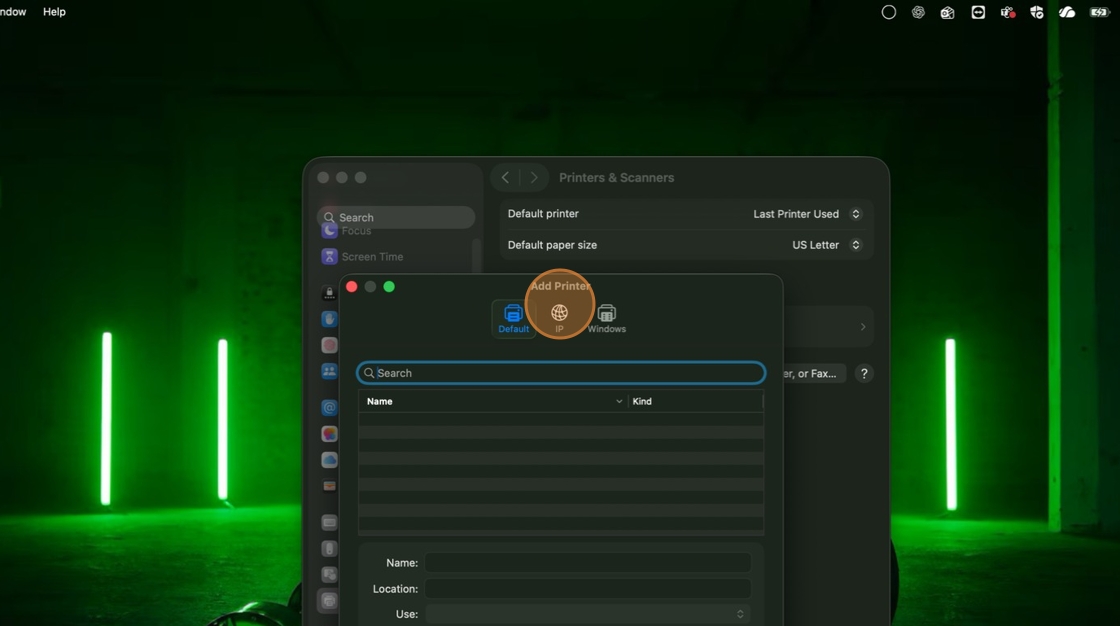
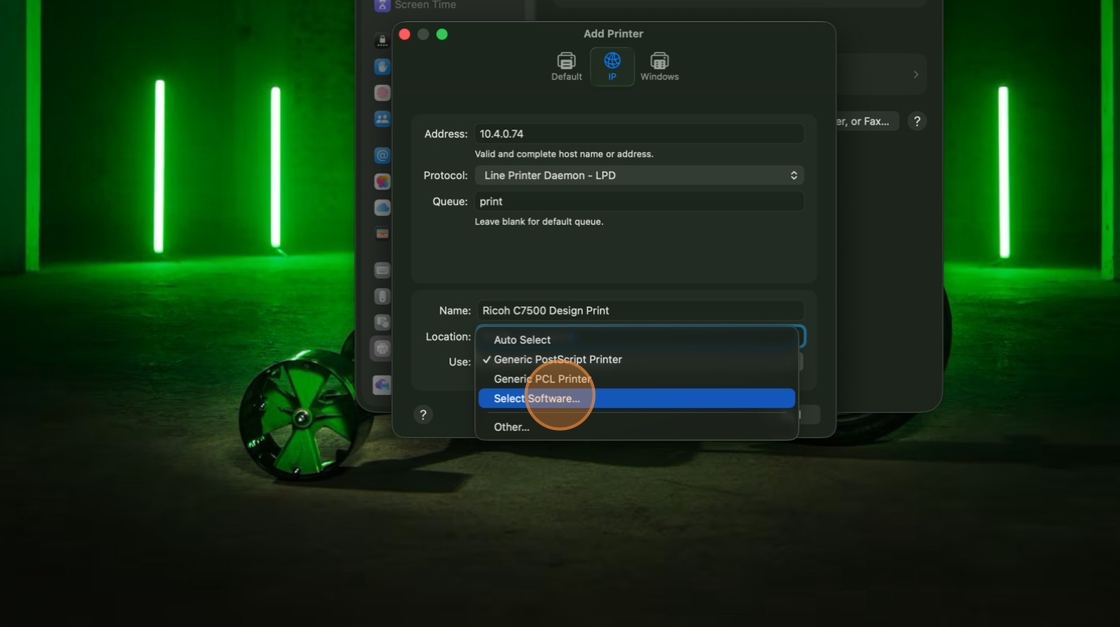
3. Click "IP"
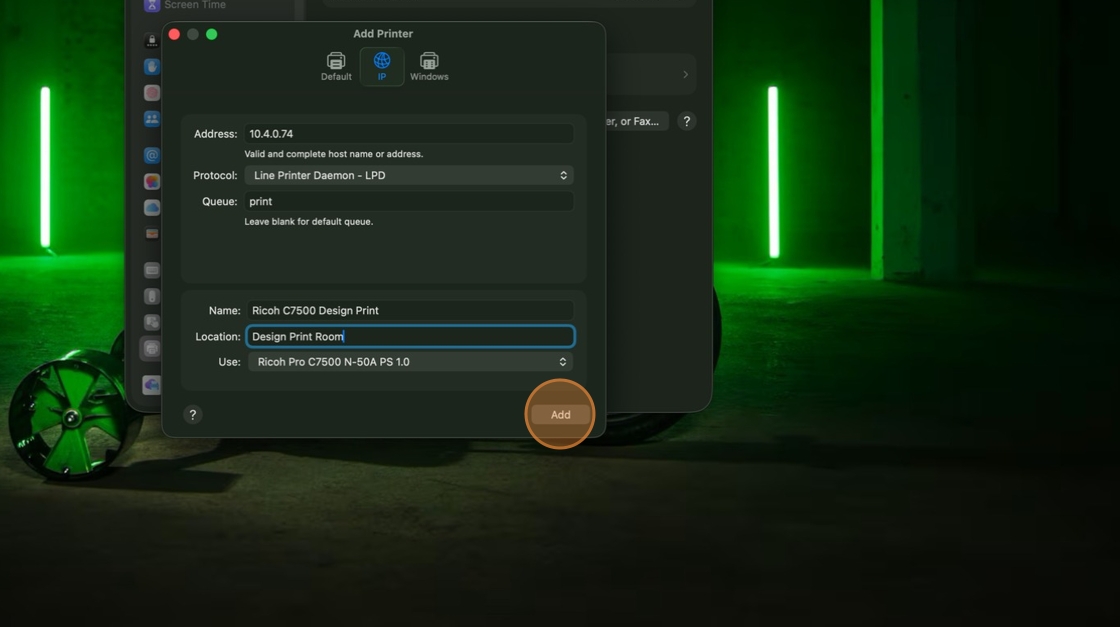
4. Click "Address" and enter 10.4.0.74
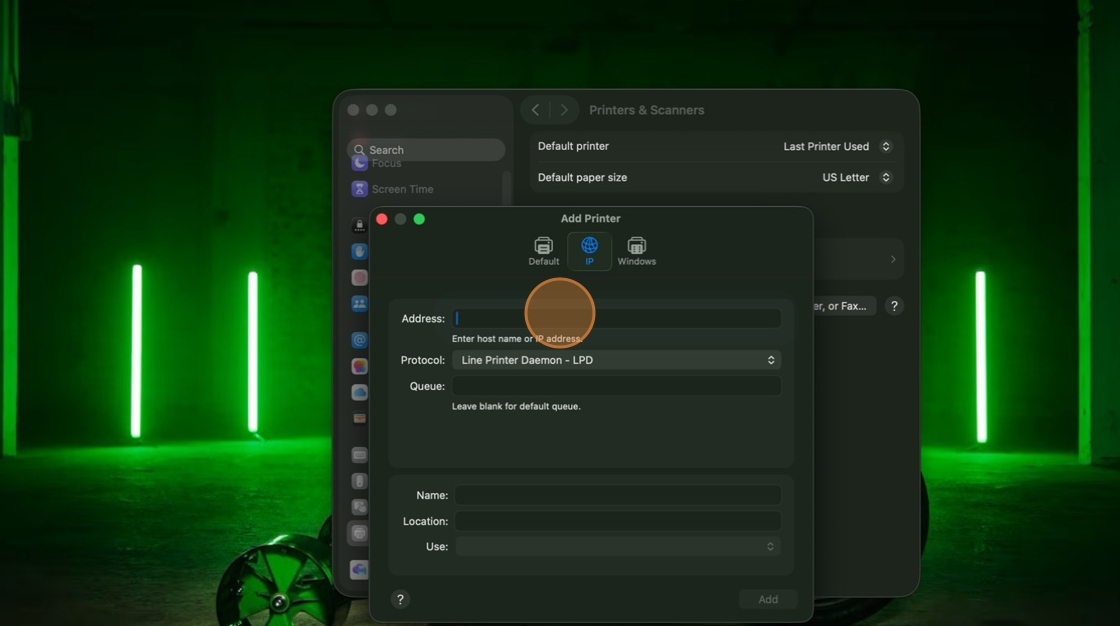
5. Click "Queue" Enter either print or hold, depending on which one you are adding. Needs to be lowercase.
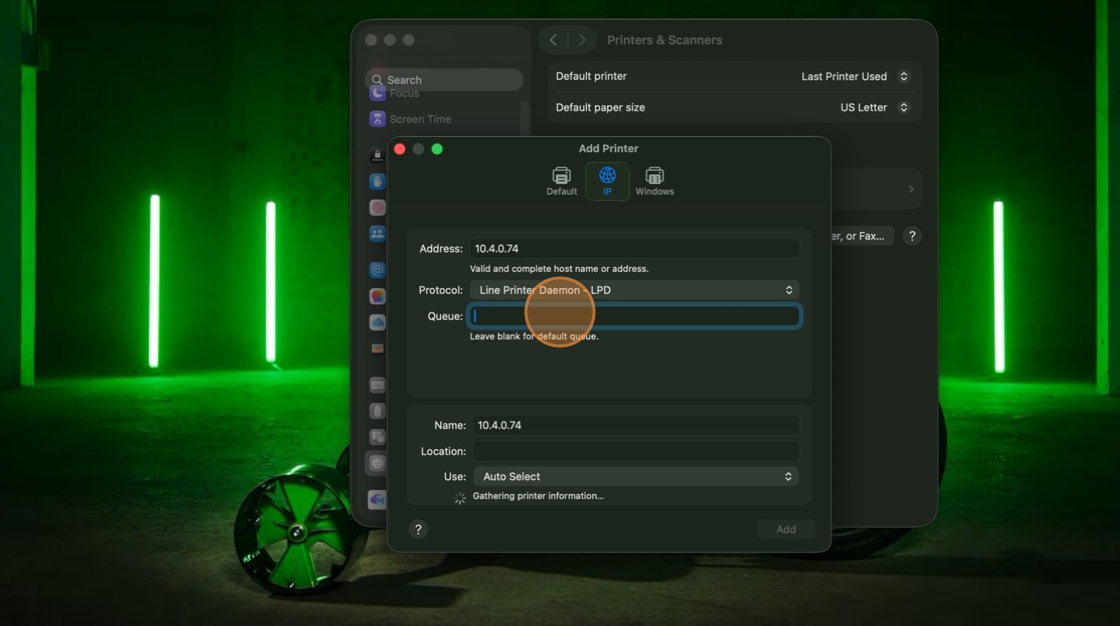
6. Double-click "Name" and name it Ricoh C7500 Design Print or Hold, depending on which one you are adding.
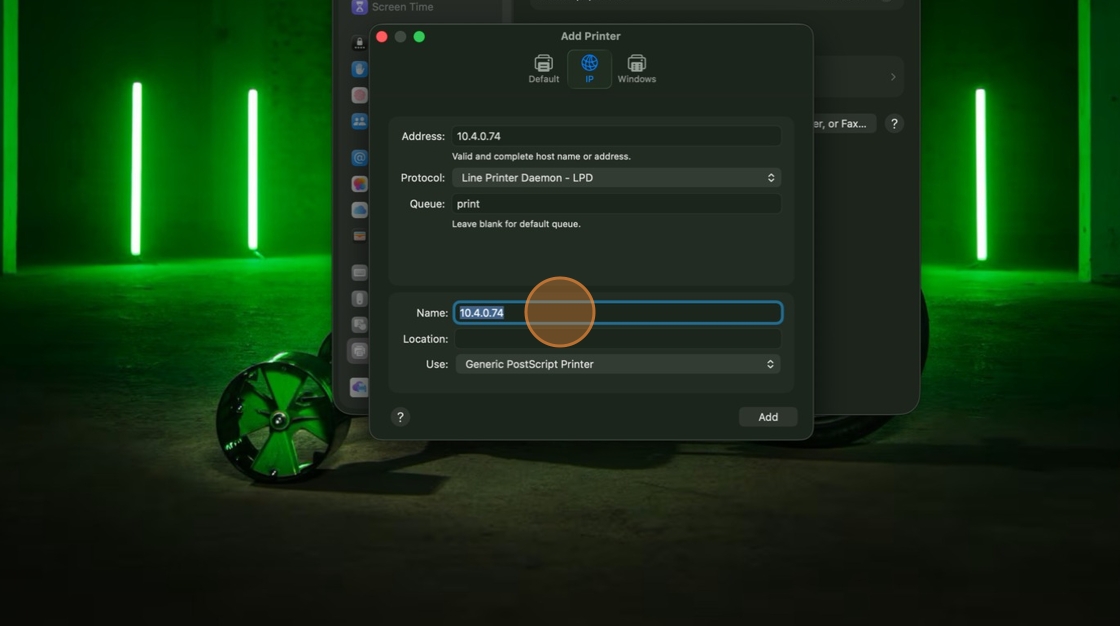
7. Click "Location" and enter "Design Print Room".
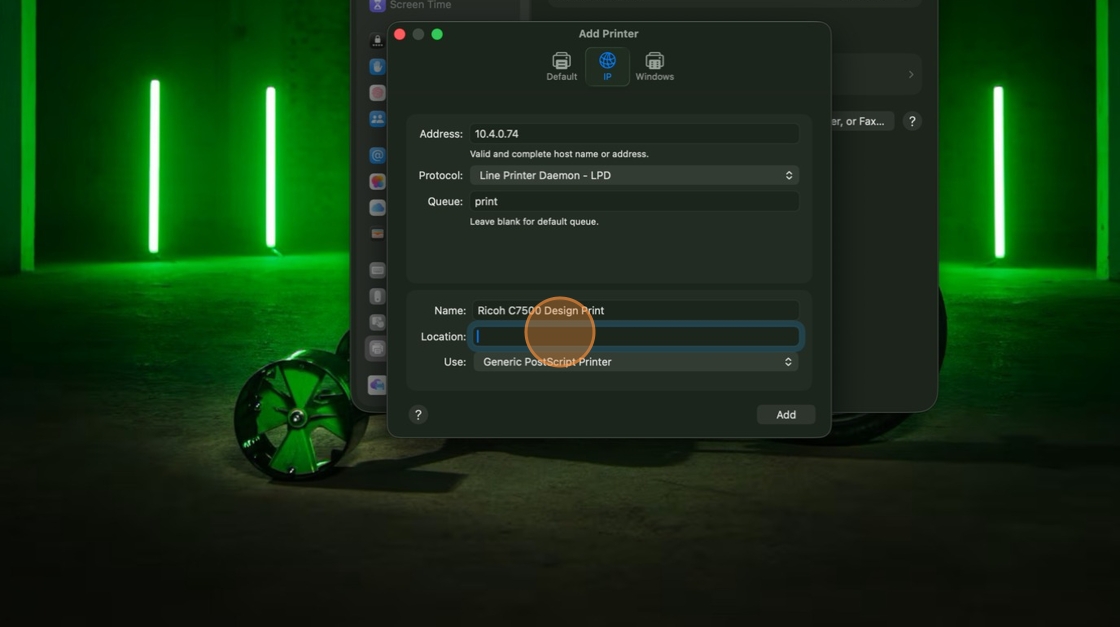
8. Click "Generic PostScript Printer"
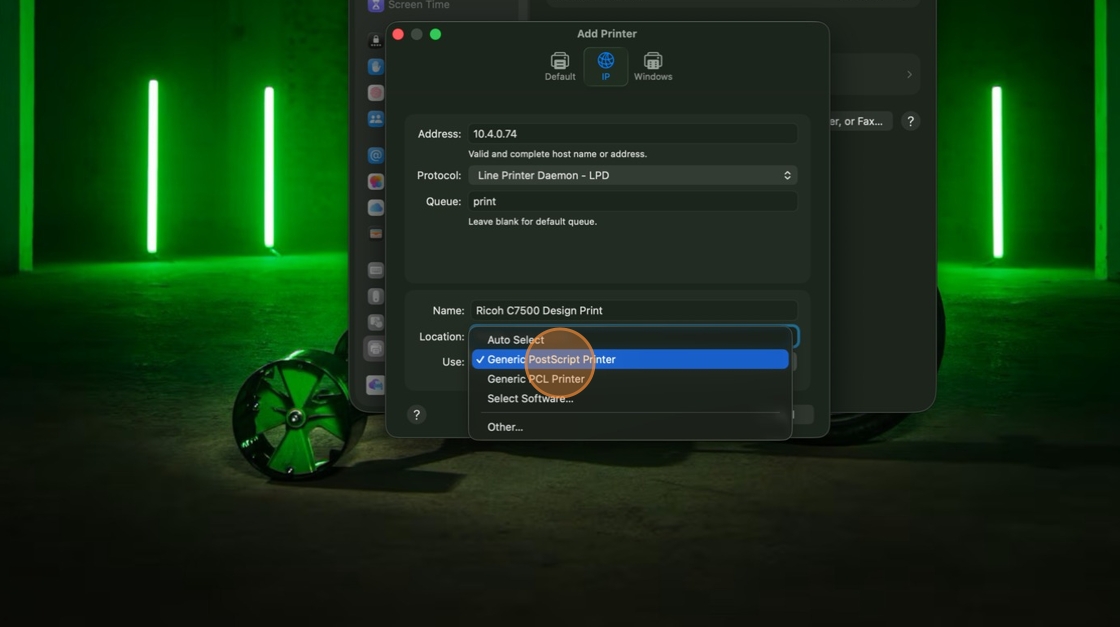
9. Click "Select Software…"
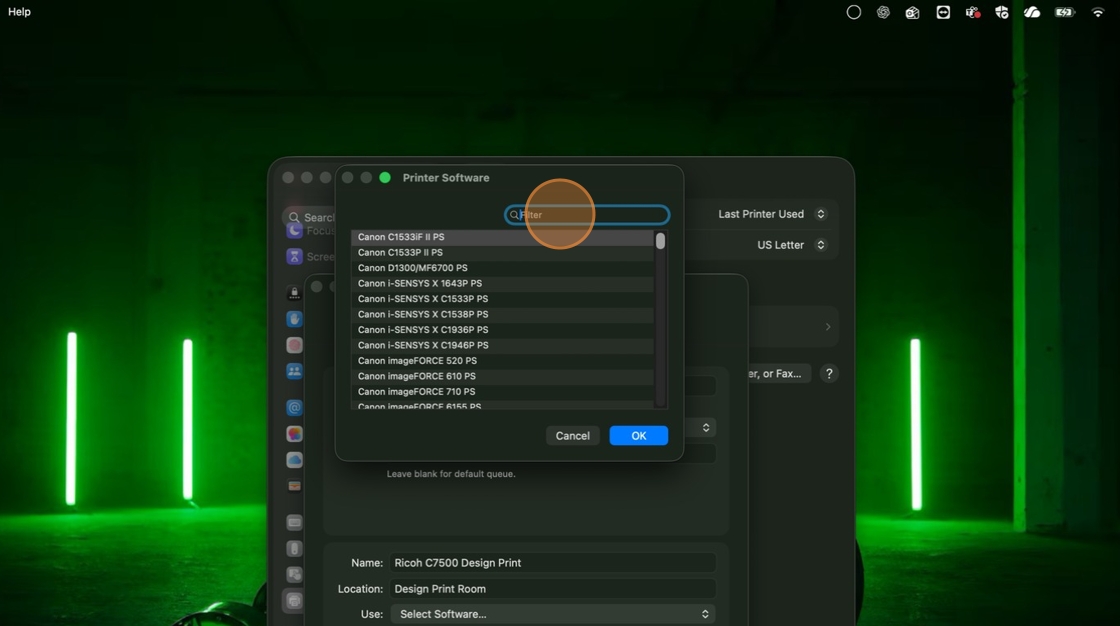
10. Click "Filter Box: To filter PPDs begin by typing full or partial model name or manufacturer." For this you'll type "Ricoh"
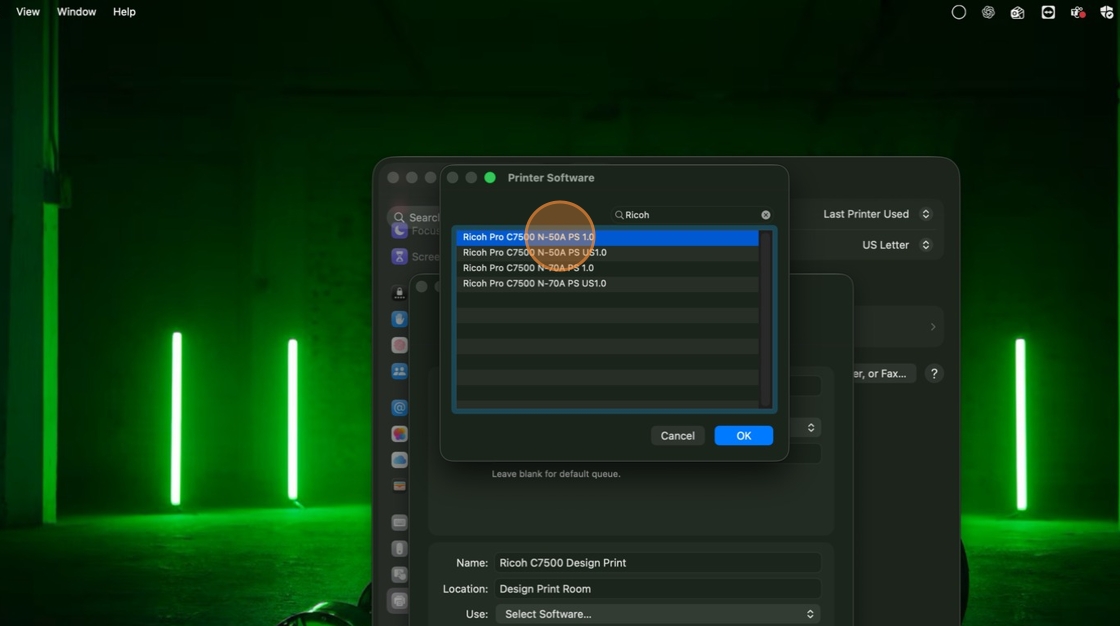
11. Click "Ricoh Pro C7500 N-50A PS 1.0"
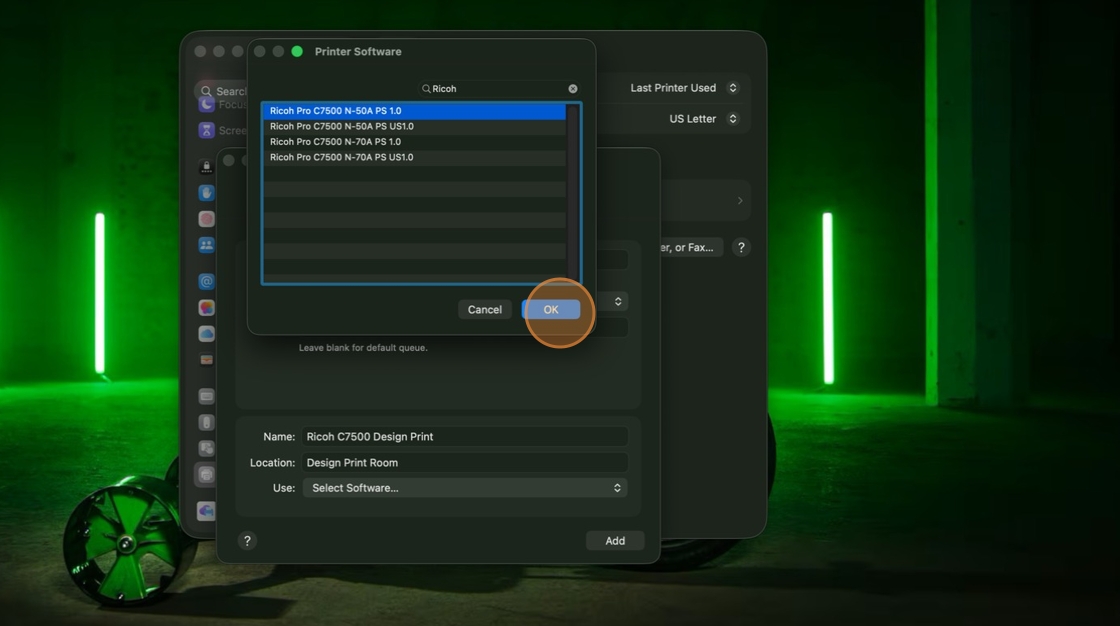
12. Click "OK"
13. Click "Add"
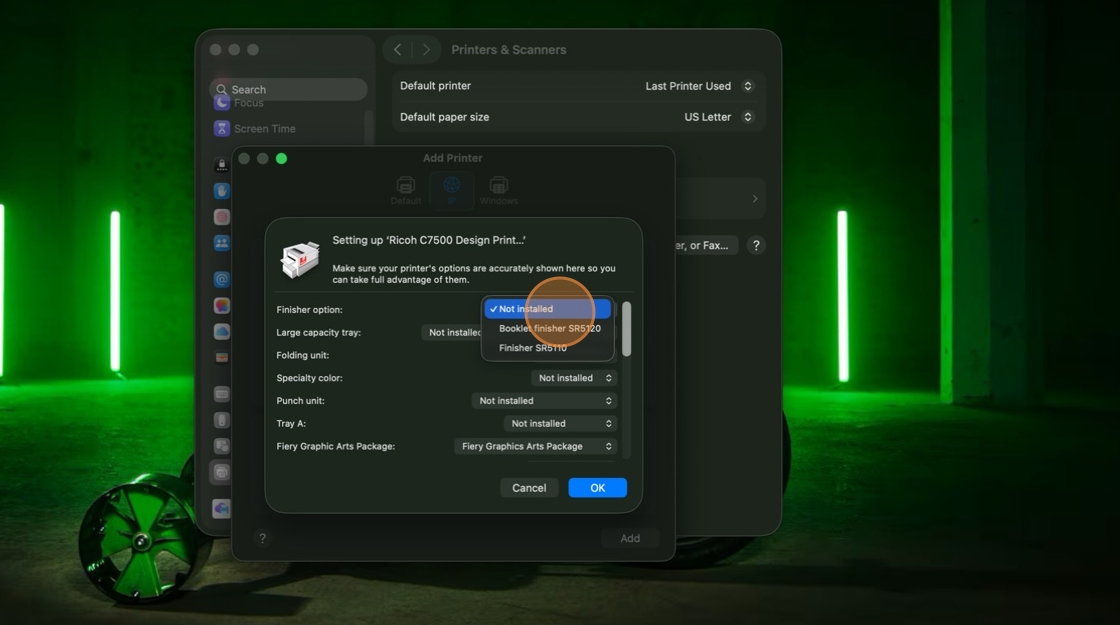
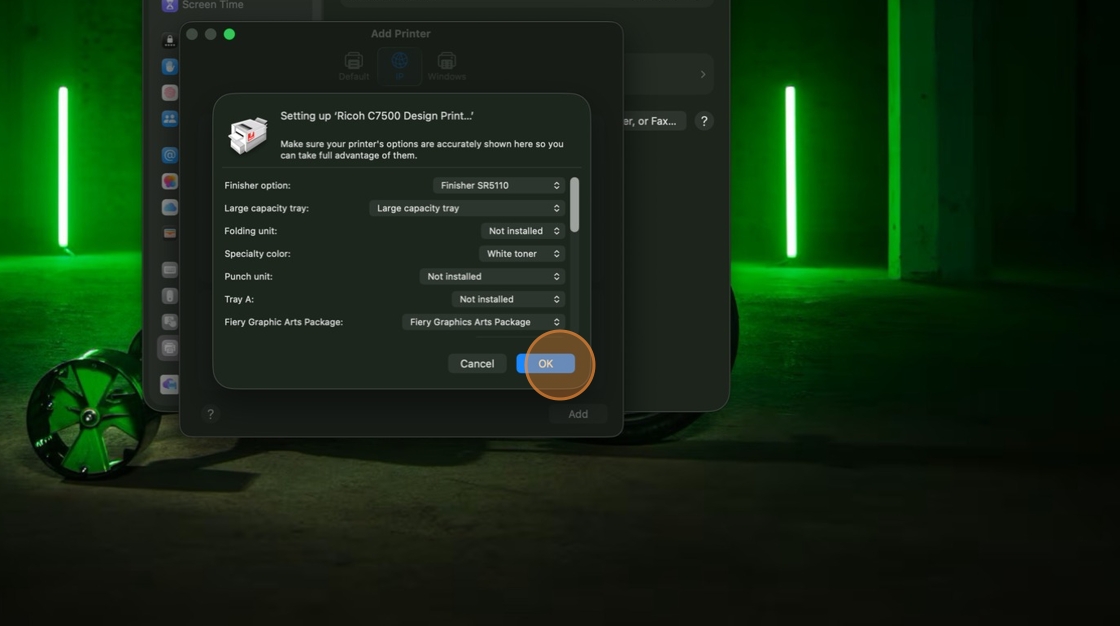
14. Click "Not installed"
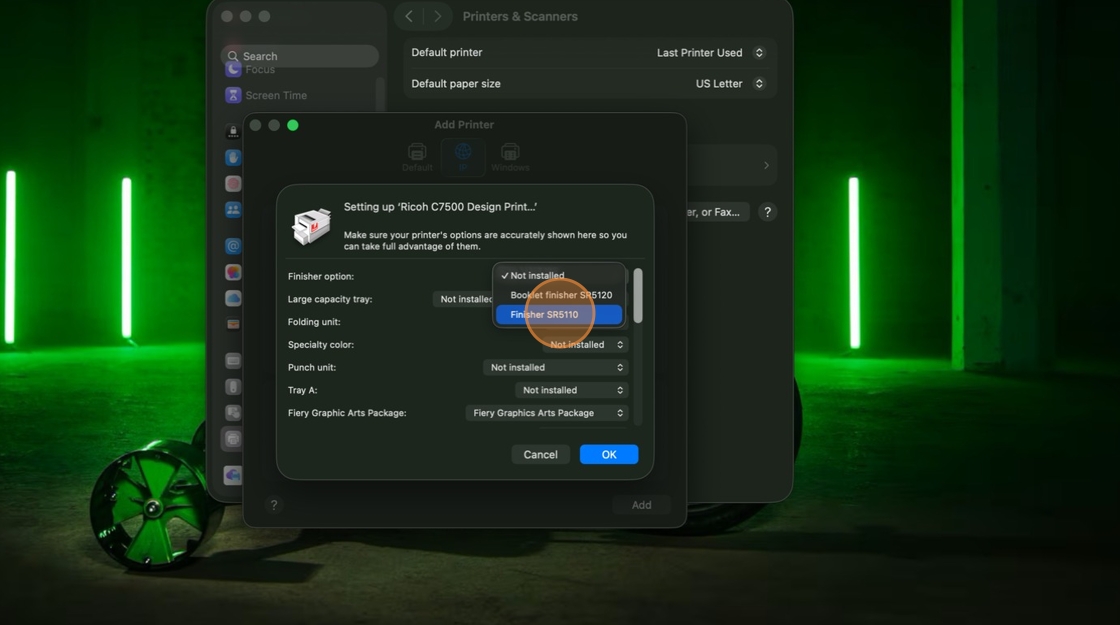
15. Click "Finisher SR5110"
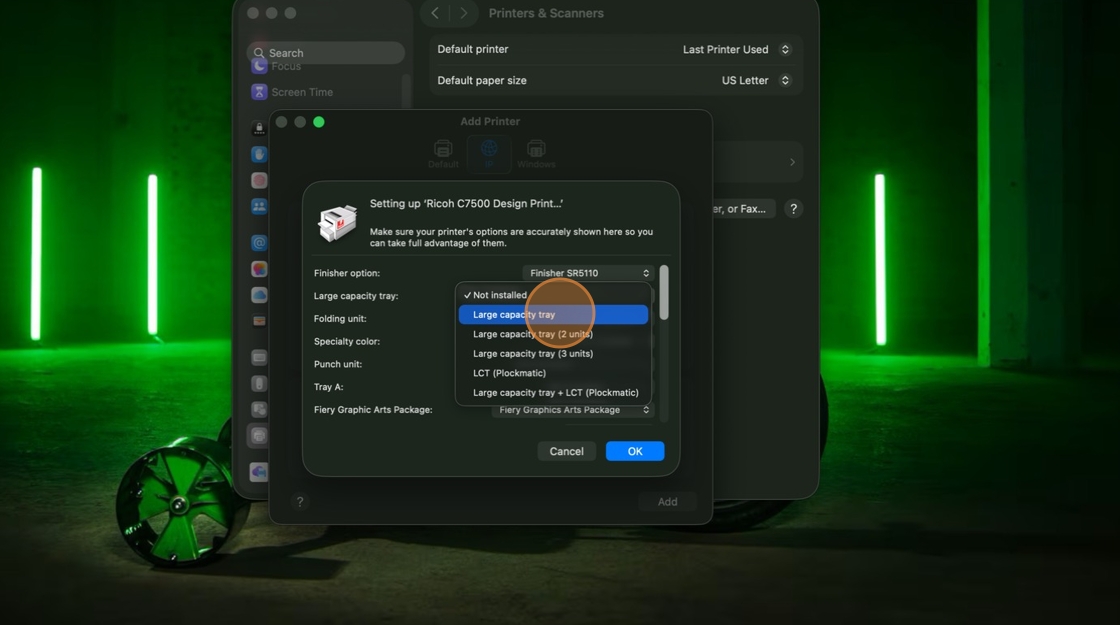
16. Click "Large capacity tray"
17. Click "Not installed"
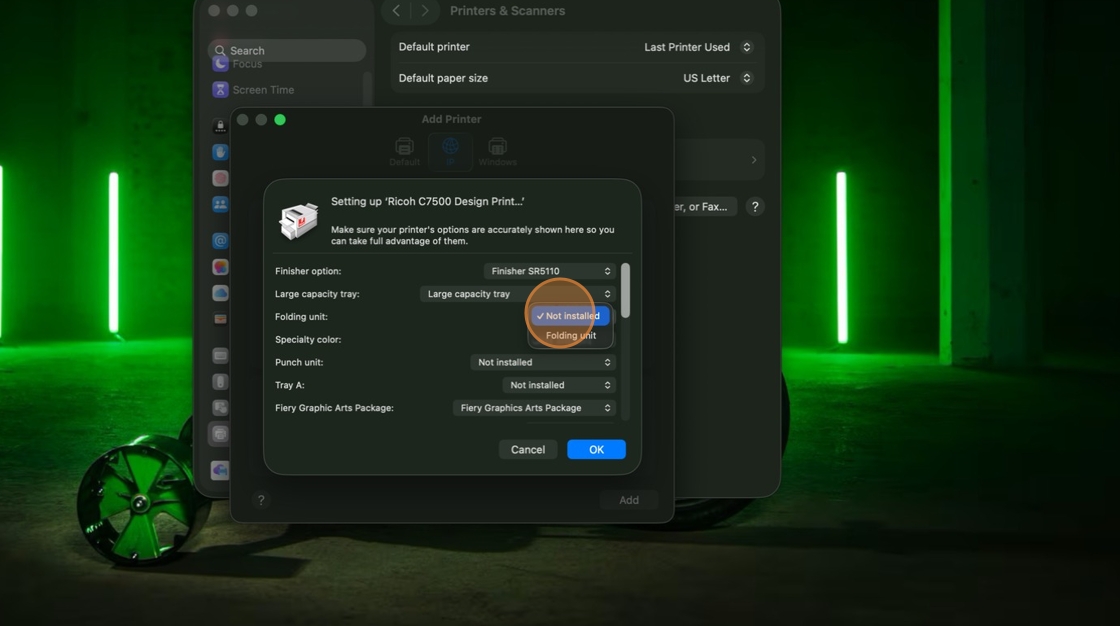
18. Click "Not installed"
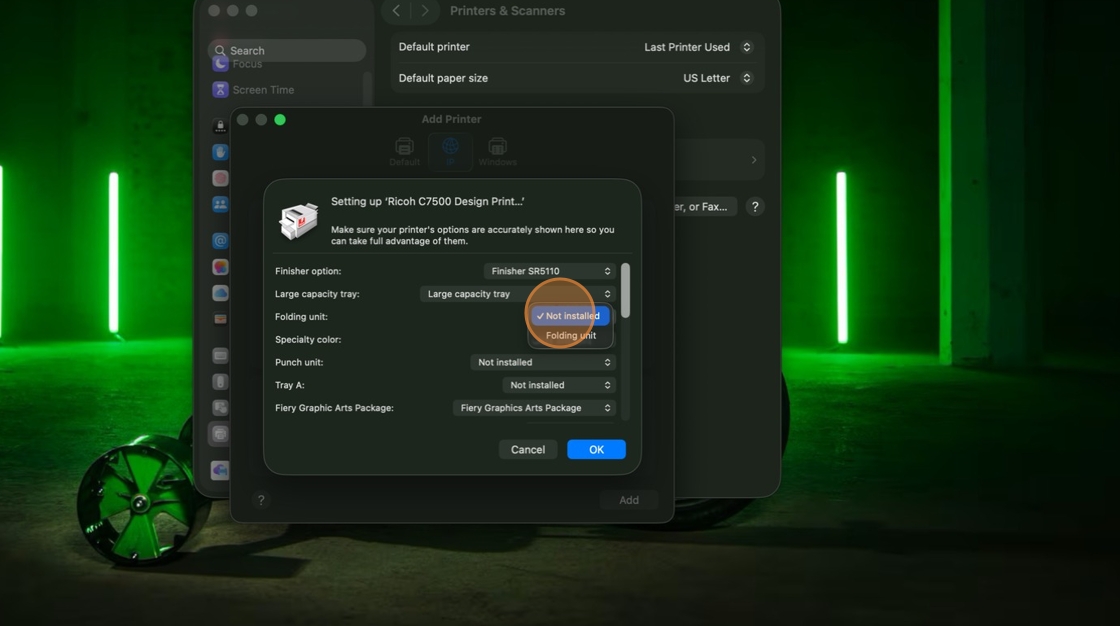
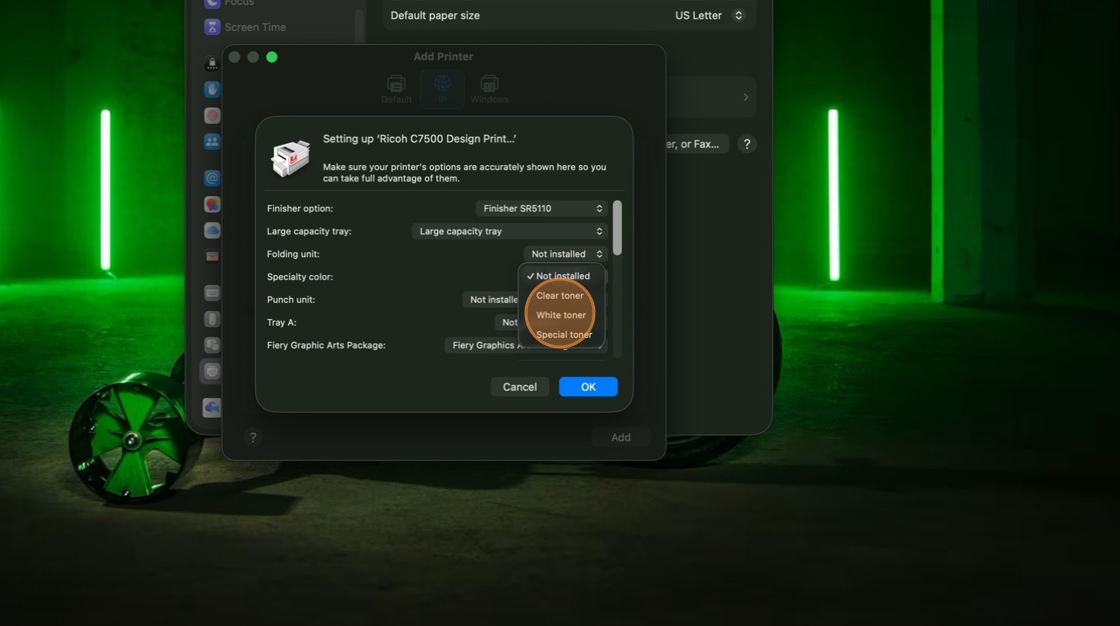
19. Click "White toner"
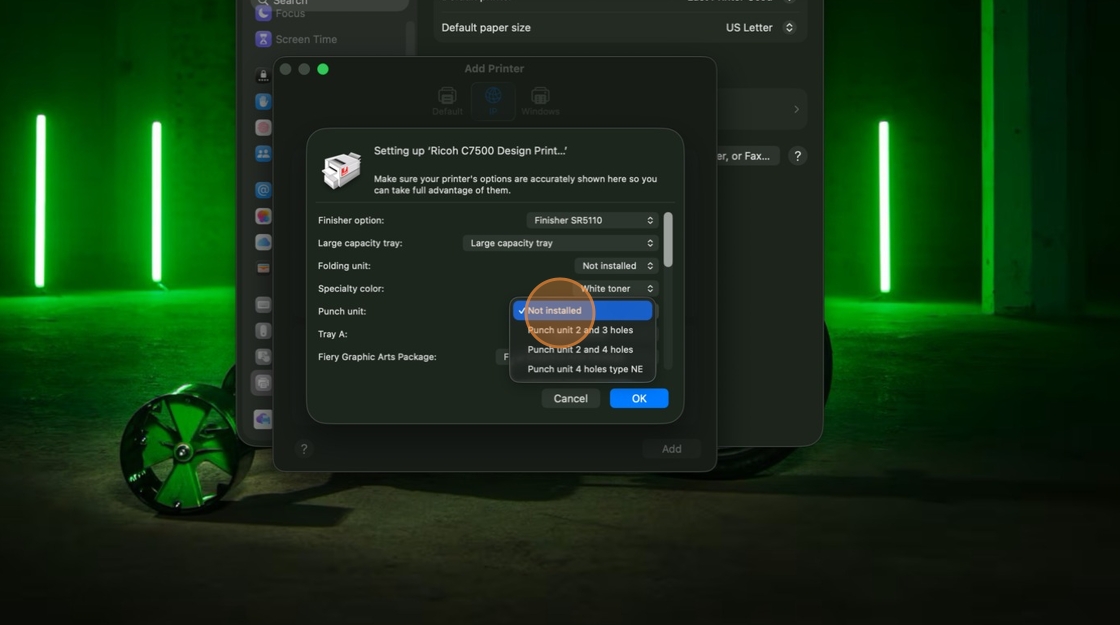
20. Click "Not installed"
21. Click "OI"
Comments
0 comments
Article is closed for comments.