
This guide will walk a user through opening Cisco from the Applications folder, adding icon to the dock, signing in, and signing out.
Opening Cisco Secure Connect
1. Open Finder

2. Click "Applications"
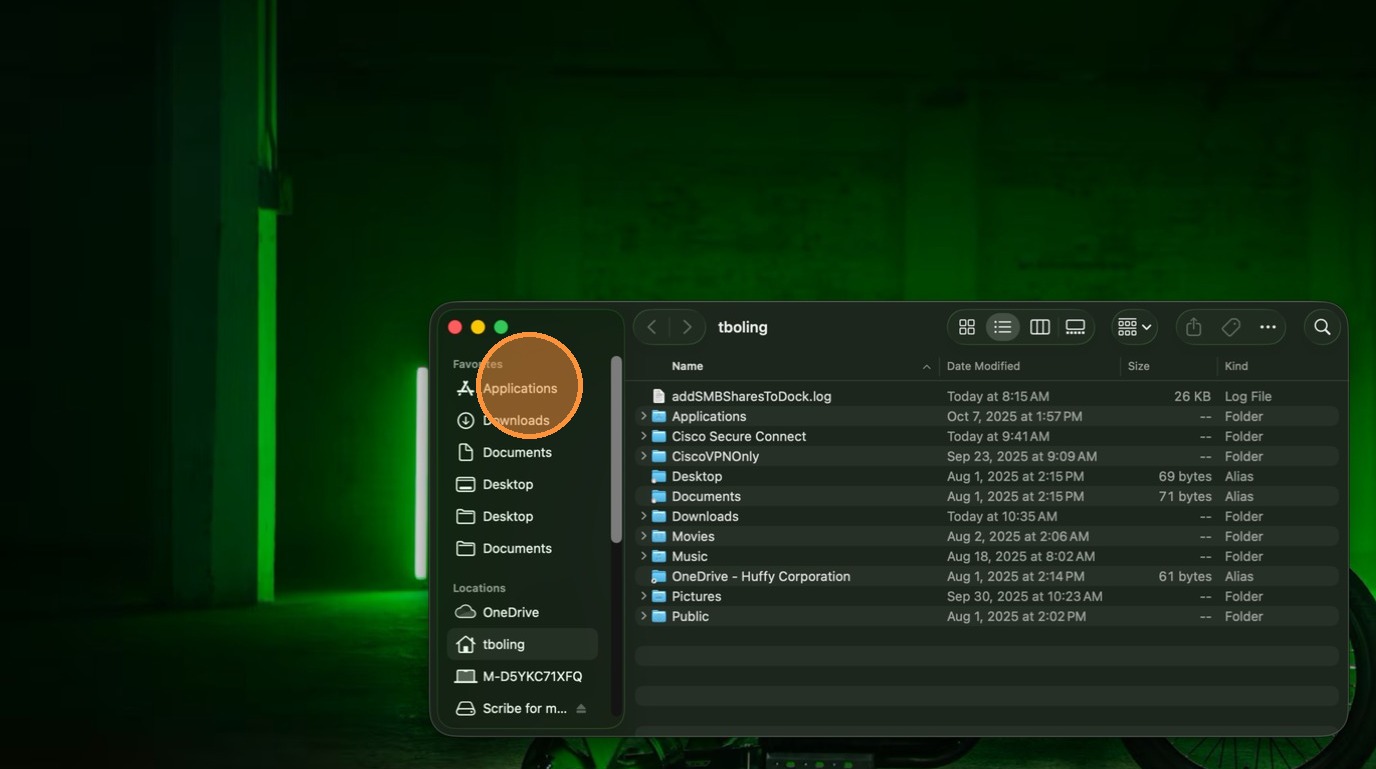
3. Click to open the Cisco folder.
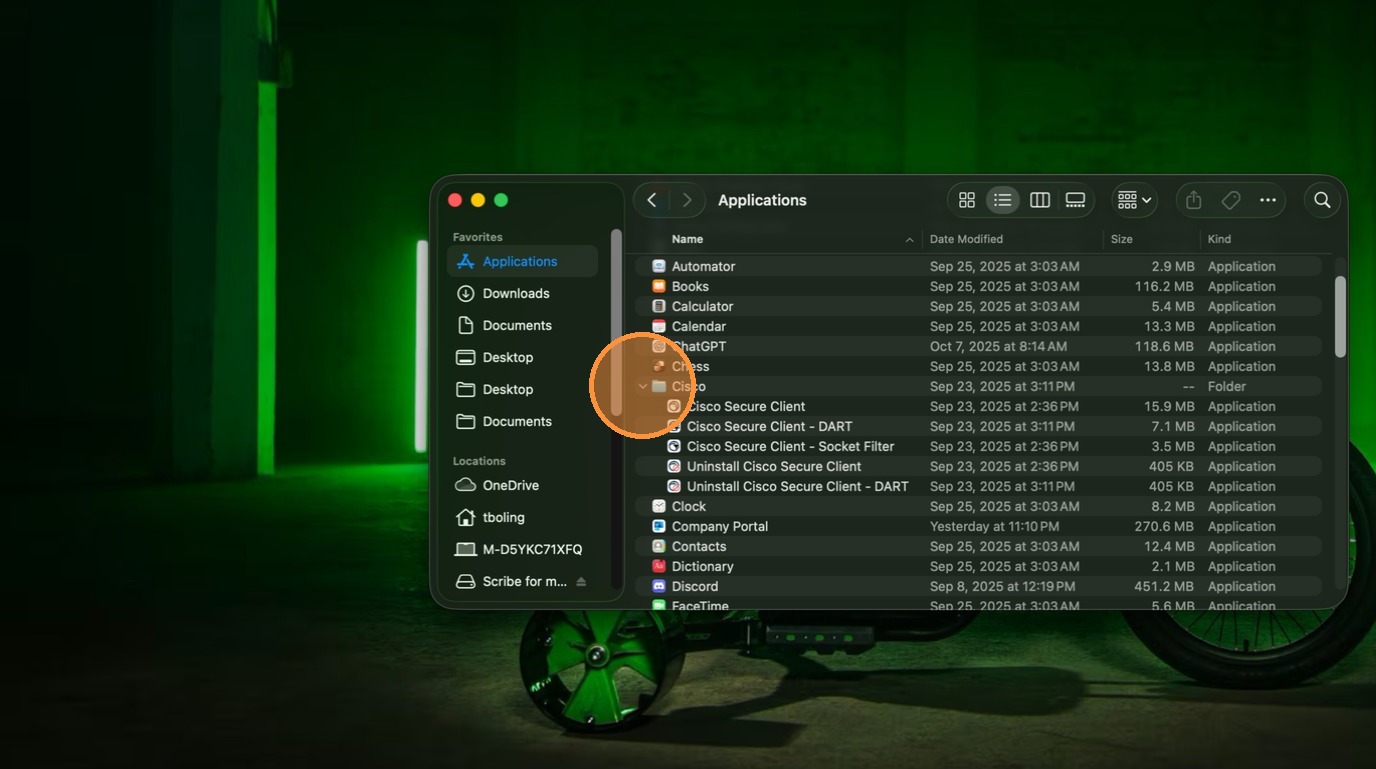
4. Open the Cisco Secure Client application.

Saving Cisco Secure Connect to Your Dock
5. Right click "Cisco Secure Client"
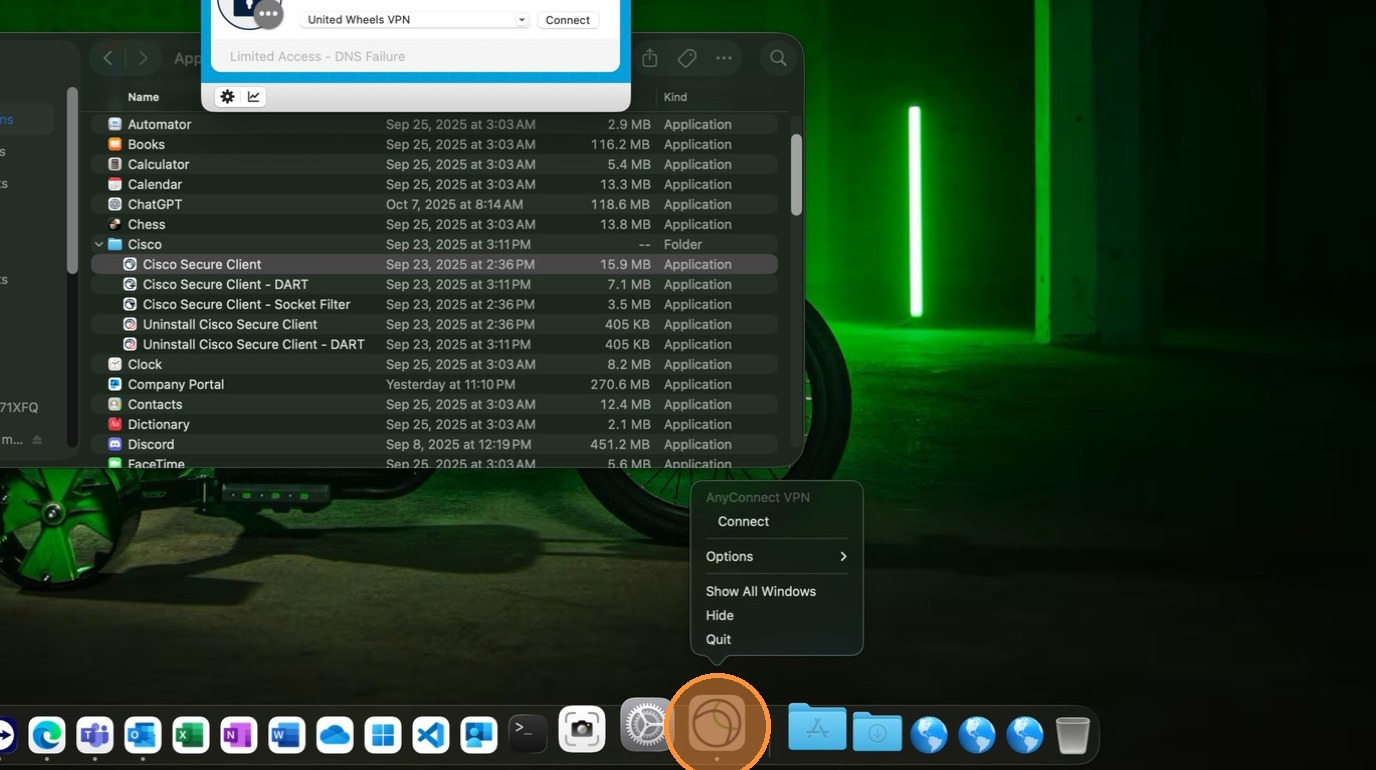
6. Click "Keep in Dock"
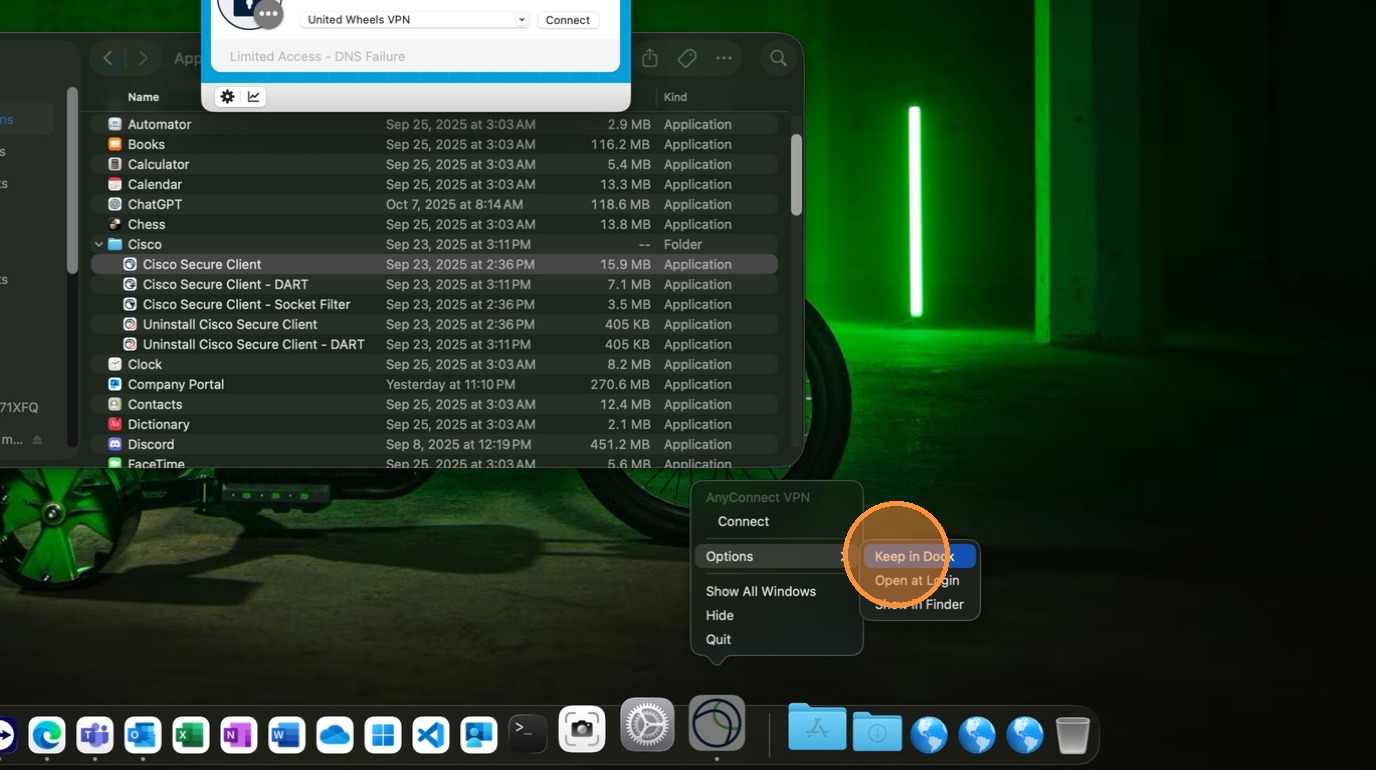
Connecting to VPN
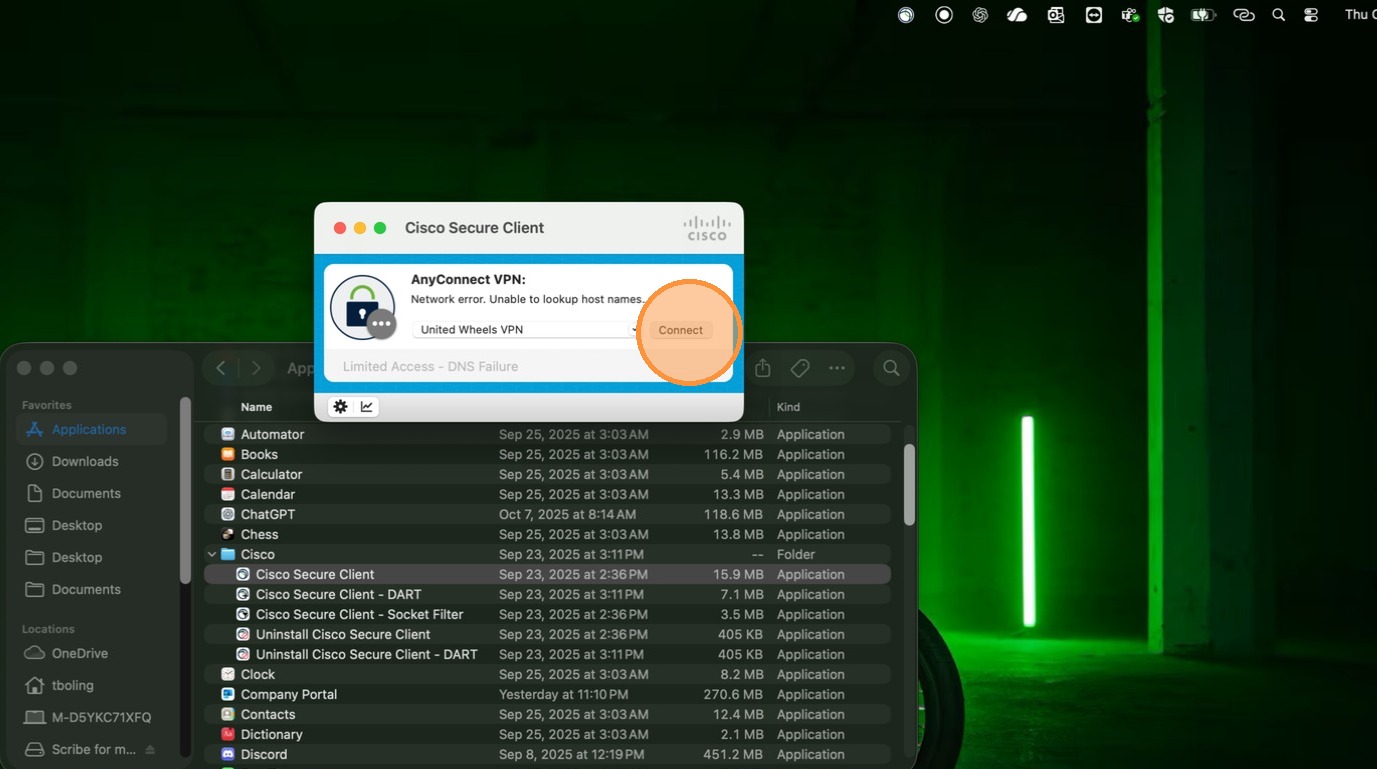
7. Click "Connect"
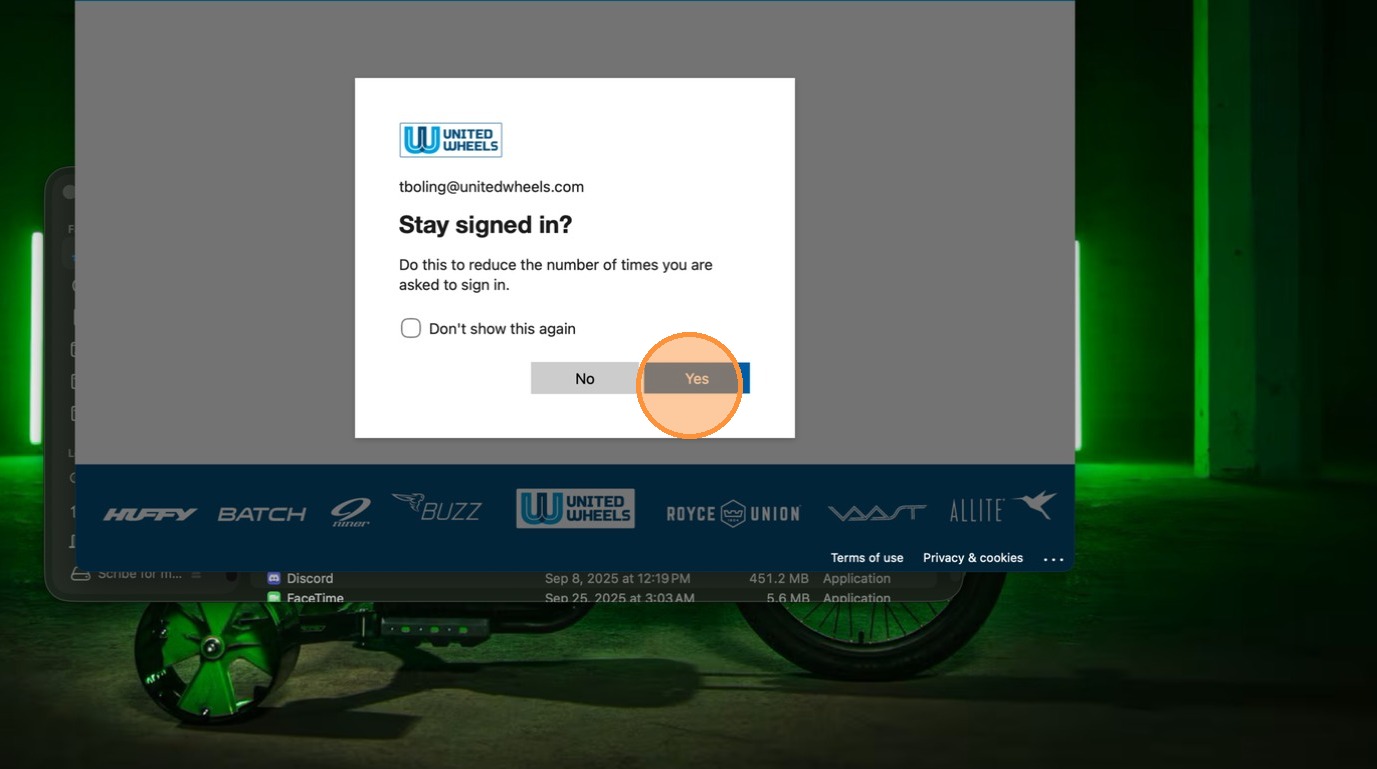
8. Enter your credentials, authenticate, then click "Yes".
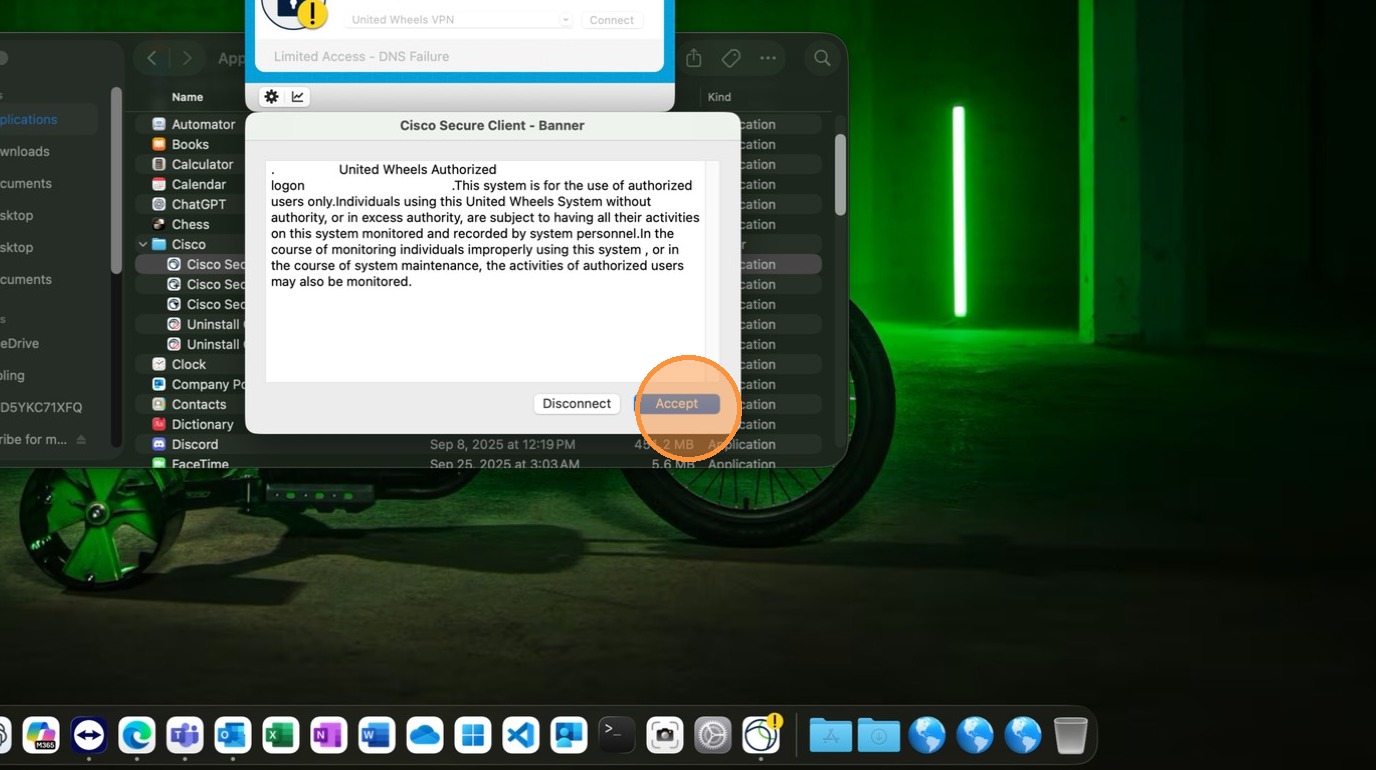
9. Click "Accept"
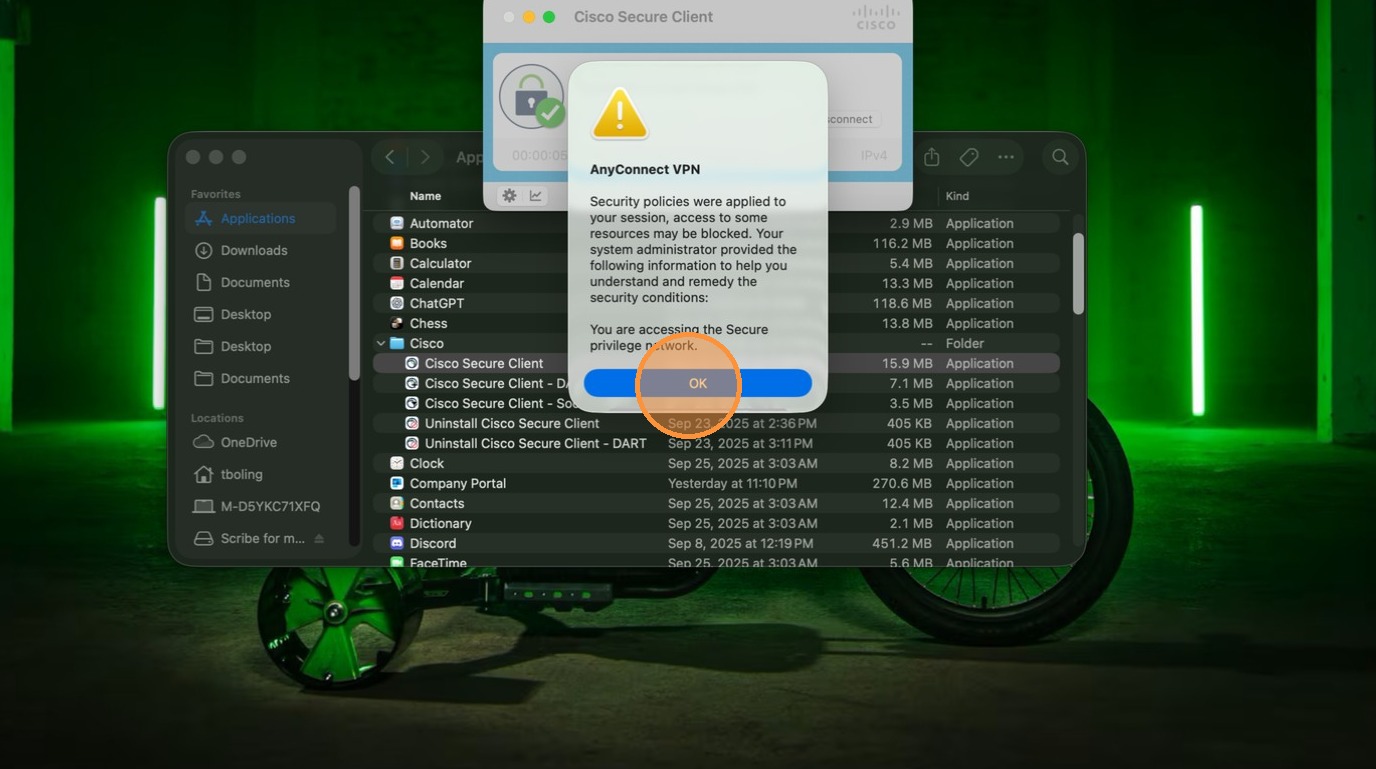
10. Click "OK"
Disconnecting from VPN
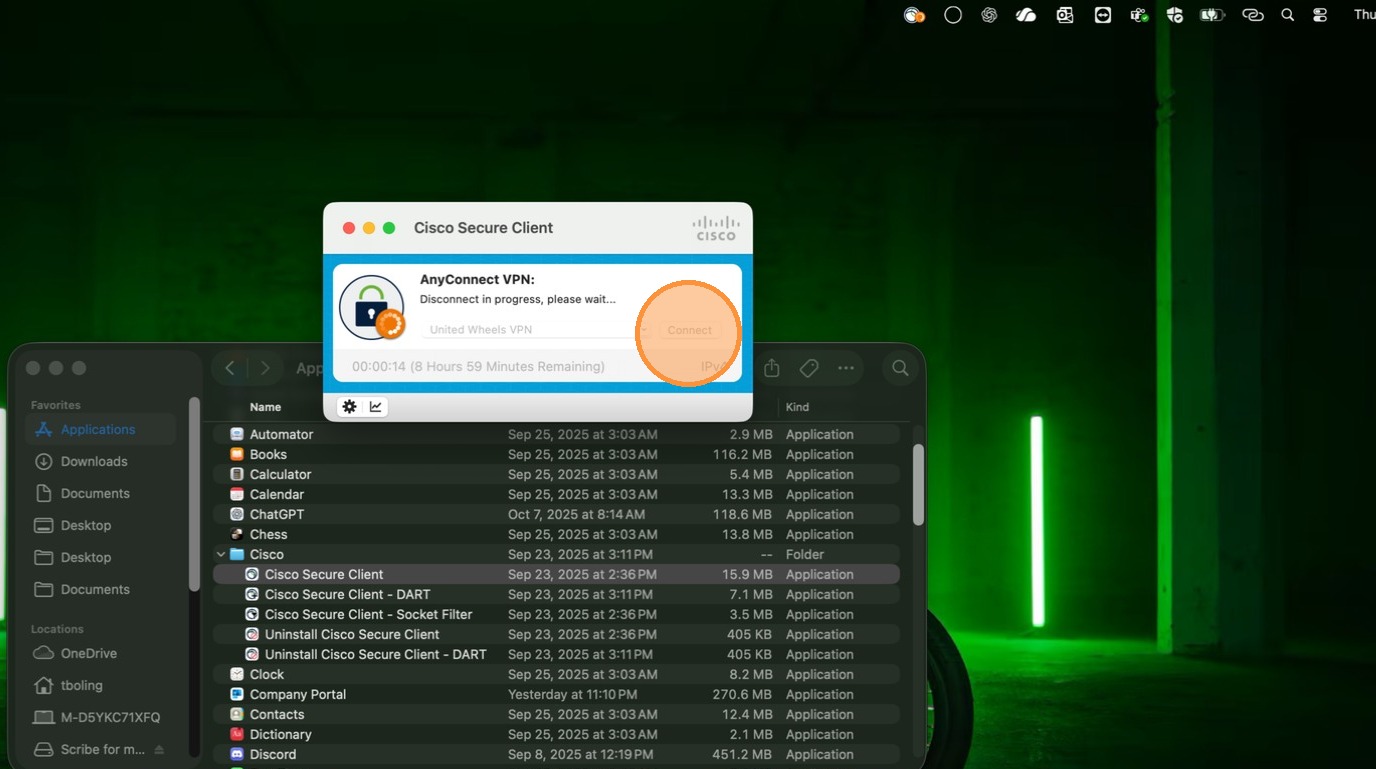
11. Click "Cisco Secure Client"
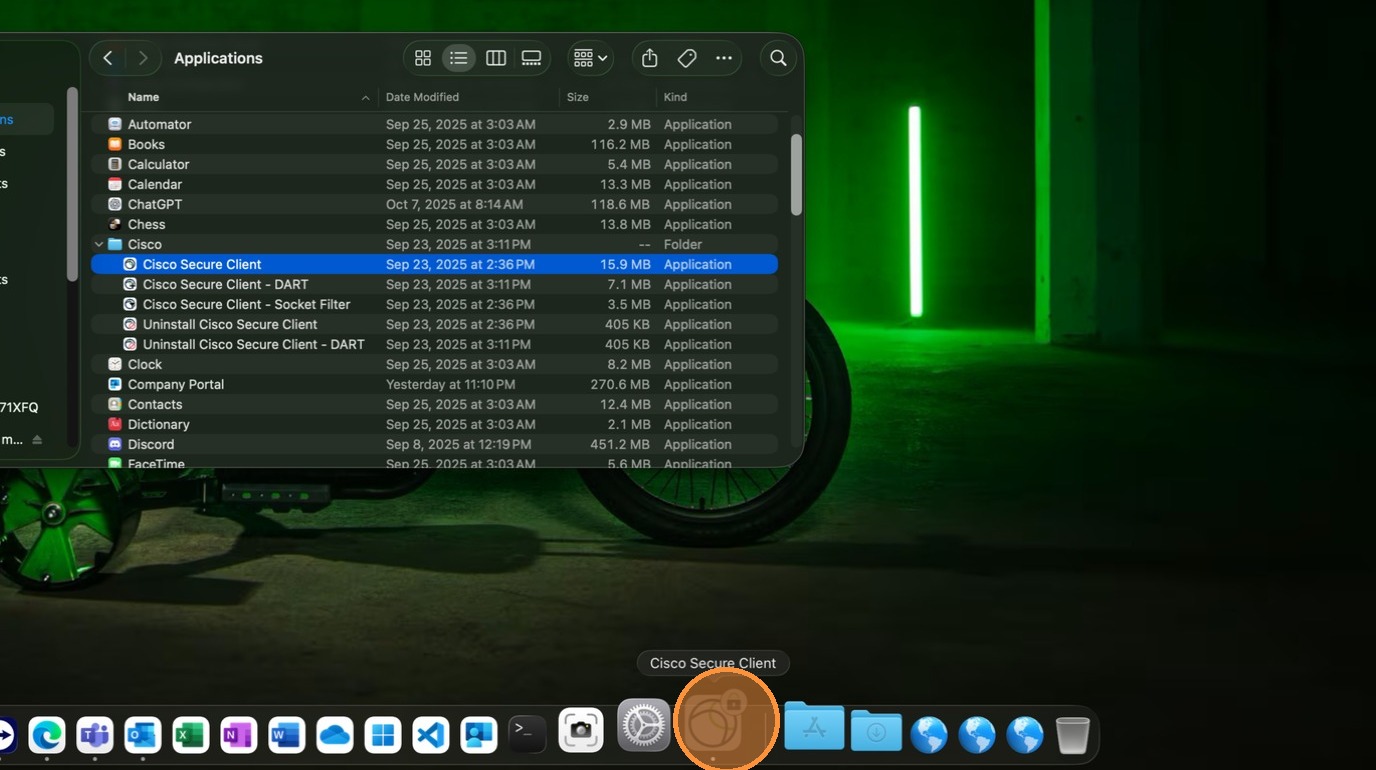
12. Double-click "Connect"
Made with Scribe
Comments
0 comments
Article is closed for comments.